


Fiedler Data Export has two ways into IBM Maximo Manage. Most exports use the first one, and many teams never need the second. The second one exists for teams whose object structures already decide what may leave Manage.
This article explains both paths and when each one fits. Then it shows why the Export page checks a layout against an object structure before the plan, and how both paths end in the same workbook. We checked the behaviour on our test system, on the MAS 9.2 series.
Two paths into Manage
On the Export page, the read path is a choice. The business object path, or MBO path, is the
default. A user with the option OSPATH can choose one of the object structures of the target
instead.


| Business object path | Object structure path | |
|---|---|---|
| How it reads | Through the export’s own automation script inside Manage | Through Manage’s REST API and the structure you choose |
| What it reads | Every attribute, every relationship and chains of them, other languages, long descriptions and specification sheets | The structure’s attributes, and its children one level deep |
| The condition | An SQL where clause, as in Manage | OSLC syntax, such as siteid="BEDFORD" |
| Who may use it | Everyone who may export | Users with the option OSPATH, who may also read the structure’s application |
A saved query works on both paths. On the structure path, Manage refuses an SQL clause, so the Export page explains the OSLC form right below the field.
When the structure path fits
The business object path reads everything an export can hold, so it is the right start for almost every job. The structure path fits a narrower case. An integration team often maintains object structures that define exactly what may leave Manage: which attributes a structure leaves out, and which children it carries. When the export reads through such a structure, it follows that definition and the rights of the structure’s application. Nobody has to keep a second list in the export.
The page checks the layout first
A structure does not carry every child of an object. Manage answers a request for a child that the structure lacks without an error, and with no rows. On its own, that would give a sheet that stays empty in silence.
So the Export page checks the layout against the structure before the plan. It goes through every sheet and every column, greys each one the structure cannot read, and says why. Where another structure of the object carries a missing relationship, the page names it. The button that plans the export stays disabled until the layout fits.
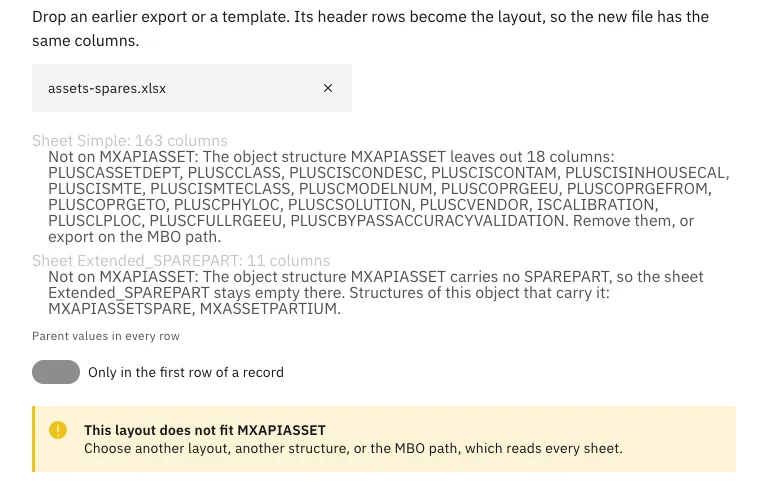
Two details make the check honest:
- A structure picks its own relationship to a child. The asset structure in the picture carries the meters under a relationship of its own. A sheet fits a child when its relationship reads the same rows: the same object under the same condition.
- A definition can promise a column that never arrives. Some columns are part of a structure and still never come back in its answers. So the check also reads one page of records, and a preset leaves such columns out.
Which structures the page offers
The list holds only the structures that Manage’s REST API reads. Manage reads a structure through
REST only when its Consumed By is in the system property mxe.oslc.validusewith. With
mxe.int.enableosauth=1, a structure also needs an authorized application. Any other structure would
fail at the plan, so the page leaves it out, and a plan that still names one says why.
A structure without the unique id of the main object is refused by name. The export reads the records in the order of that id, page by page. Some structures are made for one task and leave the id out, such as MXAPIWOCHANGESTATUS without WORKORDERID. The plan then points to the business object path or another structure.
The layout follows the structure. When you pick a structure with children as the read path and
have not chosen a layout yourself, the page switches to With children. It ticks one relationship for
each child of the main object, and a line names the children it does not read, such as those below
the first level. On the command line, fde plan --structure-children does the same.
The same cells on both paths
The structure’s answer has its own form. It leaves empty values out, writes a date as midnight in Manage’s time zone, and writes a yes or no as true or false. The export asks Manage for the empty values too, and it turns every value into the cell that the business object path writes for it.
Our tests check that in every build: the same records, read through an asset structure, give the same cells as on the business object path. Round-trip cases also read through the structure, and their files import back with every row unchanged, as in the first article of this series. Both paths page through the records by their unique id, so a stopped export resumes on either path.
One caution for your own structure exports. A structure may include non-persistent attributes, and the layout then carries them. Manage computes some of them itself, such as HIERARCHYPATH on an asset, so such a column can plan as changed when the file goes back into Fiedler Data Import. Leave those columns out of the file, or out of the structure, before an import.
What comes next
The next article is about size: what happens when an export holds a million records, and why a large export splits into several files. The Fiedler Data Export page lists the whole series.
Want to see the structure path on your own object structures? Get in touch.
IBM and Maximo are trademarks of International Business Machines Corporation, registered in many jurisdictions worldwide.