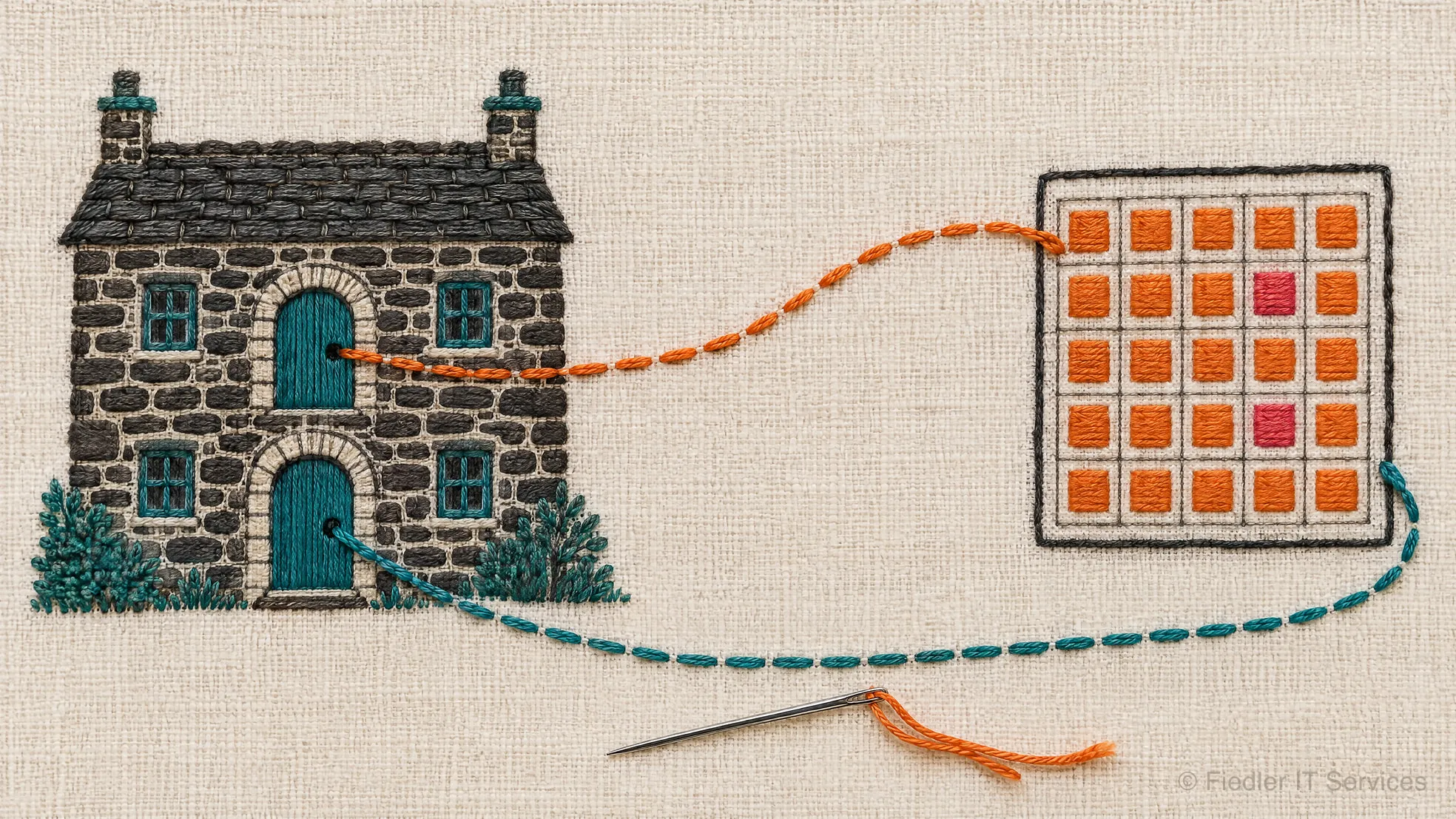


Fiedler Data Export takes records out of IBM Maximo Manage, in the Maximo Application Suite (MAS), into Excel workbooks. You choose an application and a saved query, Manage counts the records, and the app writes them into a workbook. It reads as you, so the workbook holds exactly the records you may see in Manage.
The workbook has the format that Fiedler Data Import reads. So you export the records, change them in Excel, and import the workbook again. The round trip needs no conversion between the two steps.
What it does
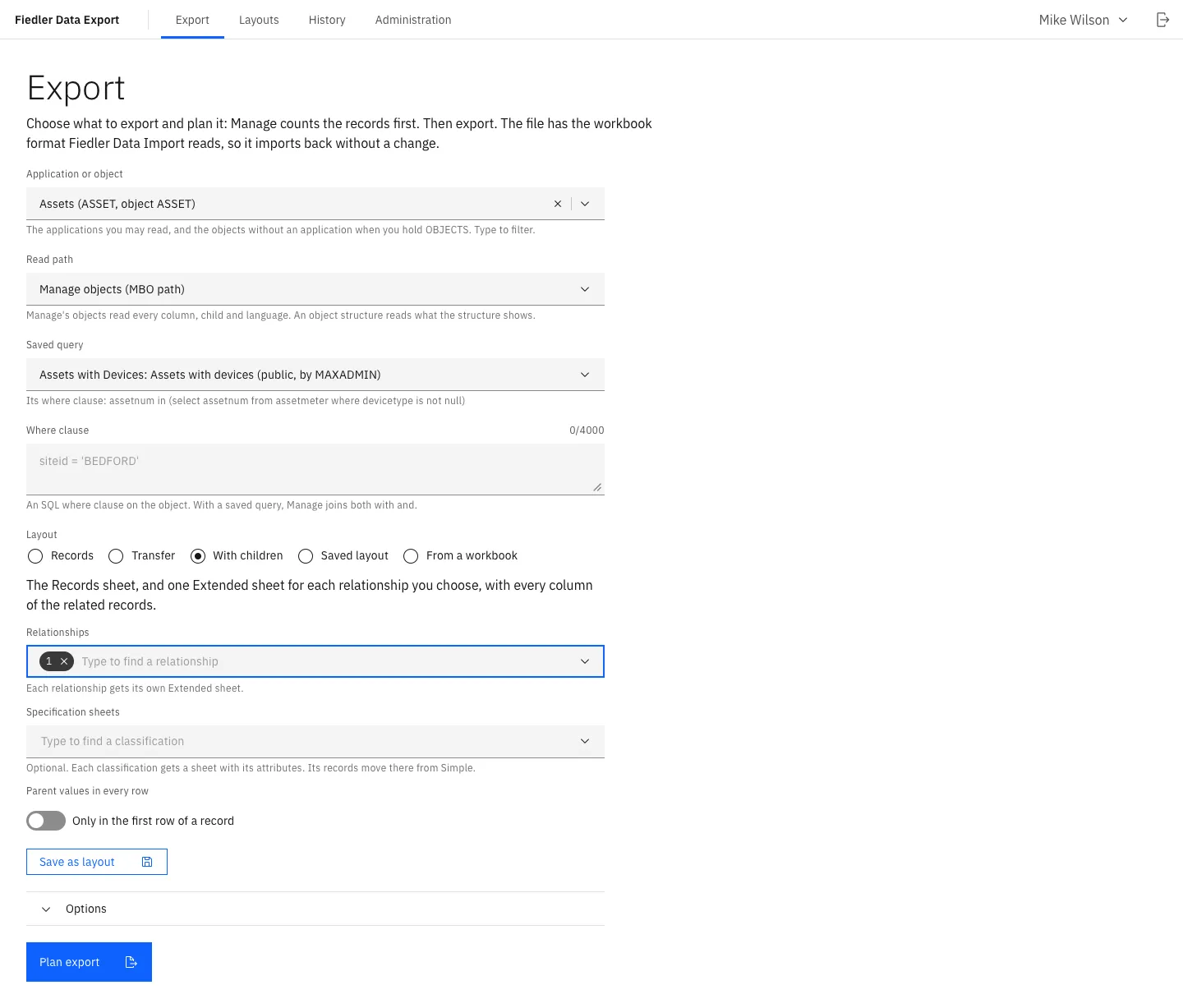
- It plans first. Manage counts the records, and the plan shows the sheets and their columns. The app reads nothing until you press Export.
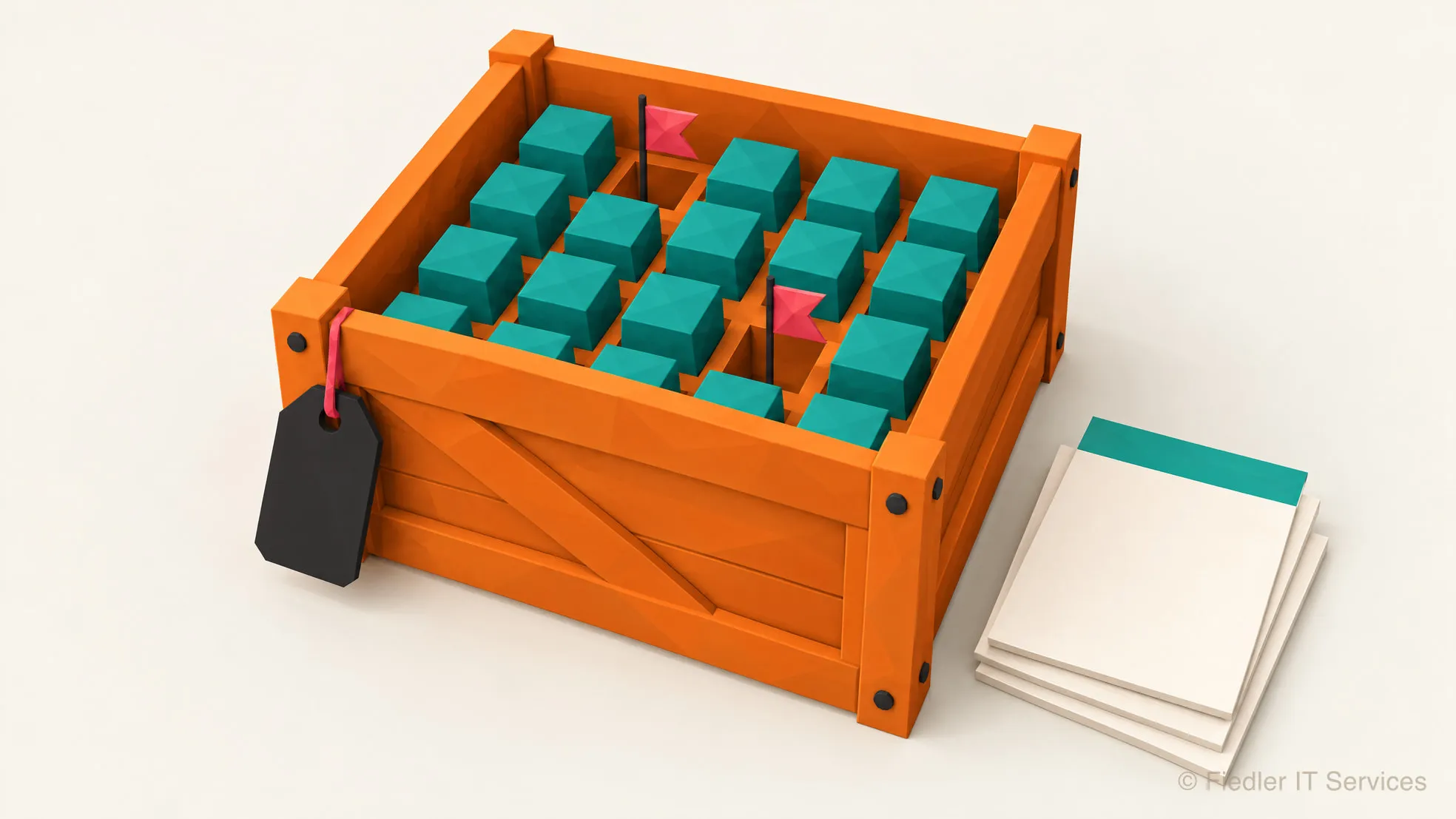
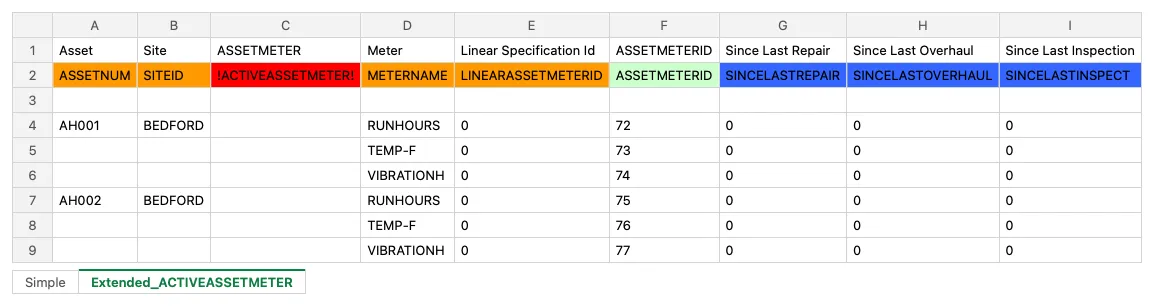
- It writes one sheet per kind of record. The main records go on one sheet. Related records, such as an asset’s meters, go on their own sheets, next to the record they belong to. A classification can get a sheet of its own with its specification attributes.
- It offers layouts. Records writes every attribute. Transfer leaves out the unique id and the generated numbers, for a load into another system. With children adds the relationships you pick. Multilevel writes a whole hierarchy on one sheet, up to five levels. A layout can be saved and shared with a security group.
- It takes a workbook as the layout. Drop an earlier export or a template, and the new file gets the same columns. So Excel is the column editor.
- It makes import templates. A layout gives an empty workbook for a new import. Row 3 describes each column’s attribute in your language, so whoever fills in the template sees what each column needs.
- It has two ways to read. The business object path reads every column, child and language. The object structure path reads through a structure of your choice, and the screen greys out what the structure cannot carry, with the reason.
- It only reads. An export never changes a record in Manage.
How it runs
Fiedler Data Export is a companion app, like Fiedler Data Import: a container in the MAS cluster on OpenShift, next to Manage. Inside Manage it needs four small automation scripts and its own application for the rights. Its administration screen installs them, and the same screen removes them again. Both apps share the workbook engine, so a workbook means the same to both.
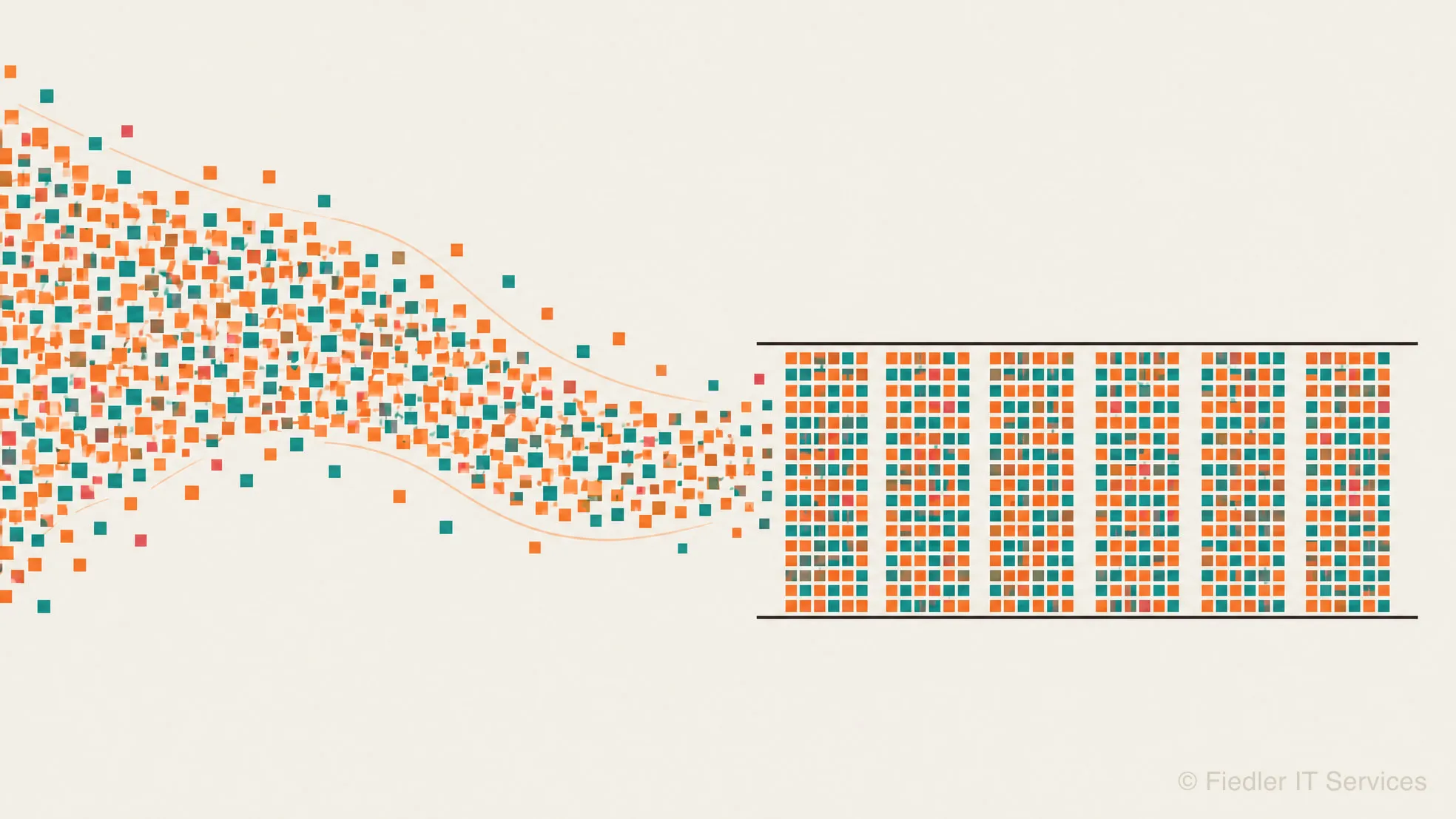
A large export runs in the background as a job. It reads Manage page by page, and it splits into several files when one file would get too large for Excel or for the import. Every job stays in the history with its log and its files until the retention period ends.
For scripts and scheduled work, the command line client fde exports the same way. The
installation guide includes a nightly export as a Kubernetes CronJob, and metrics, alerts and a
dashboard come with the app.
Who it is for
Maximo administrators and data teams who need data out of Manage: to review and correct master data in Excel, to move records into another system, to build an import template, or to keep a regular extract. And everyone who uses Fiedler Data Import, because the export writes the workbooks it reads.
Editions
Fiedler Data Export shares one licence with Fiedler Data Import, the licence of Fiedler Data Tools. The free edition exports up to 200 records at a time, for up to three users. The Fiedler Data Tools page describes both editions.
The series
A series of articles explains Fiedler Data Export, from the round trip to running it:
- Out to Excel and back in: the round trip, and why the export writes the import’s format
- Layouts: Records, Transfer, With children, saved layouts and your own workbook
- Two ways to read: business objects and object structures
- Measured: a million records: why a large export splits its files
- Running it: install and removal, nightly exports, retention and monitoring
- Several levels deep: a whole hierarchy on one sheet, and back into Manage
- What the export tells you: the count, header notes, text columns and the cells Manage could not deliver
The articles appear below as they are published.
Talk to us
Want to see Fiedler Data Export on your own data? Get in touch. We work in English and German.
IBM and Maximo are trademarks of International Business Machines Corporation, registered in many jurisdictions worldwide.